
Windows 10 开发 - SQLite 数据库
在许多应用程序中,某些类型的数据彼此之间存在某种关系。这些难以存储在文件中的数据可以存储在数据库中。
如果您熟悉各种数据库类型,例如任何应用程序中的 SQL Server 或 Oracle 数据库,那么理解 SQLite 数据库 就非常容易了。
什么是 SQLite?
SQLite 是一个软件库,它实现了一个自包含、无服务器、零配置、事务型 SQL 数据库引擎。
重要特性有 −
SQLite 是世界上部署最广泛的数据库引擎。
SQLite 的源代码是开源的。
由于其可移植性和占用空间小,它对游戏和移动应用程序开发产生了巨大的影响。
SQLite 的优势
SQLite 的优势 − 如下
- 它是一个非常轻量级的数据库。
- 它与平台无关,可在所有平台上运行。
- 它占用内存很少。
- 它非常可靠。
- 无需任何设置和安装。
- 它没有任何依赖项。
要在通用 Windows 平台 (UWP) 应用程序中使用 SQLite,您需要按照以下步骤操作。
创建一个名为 UWPSQLiteDemo 的新通用 Windows 空白应用。
转到 工具 菜单,然后选择"扩展和更新"。将打开以下对话框。
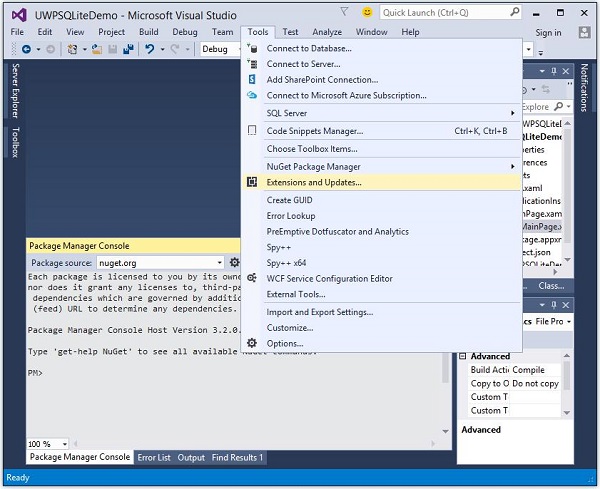
- 选择"扩展和更新"后,将打开以下窗口。
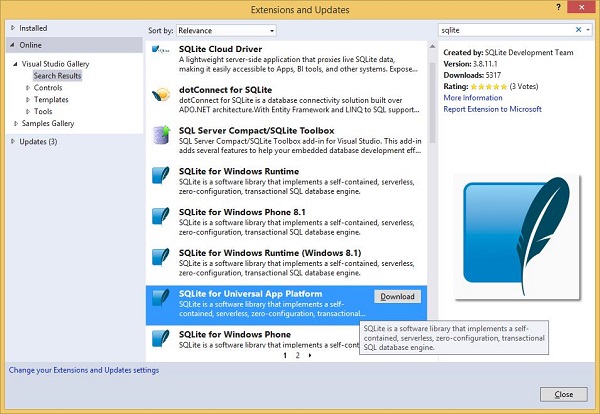
现在,选择在线选项,并从左侧窗格中搜索 SQLite。
下载并安装适用于通用应用平台的 SQLite。
现在,再次转到"工具"菜单,然后选择NuGet 包管理器 >程序包管理器控制台菜单选项,如下所示。
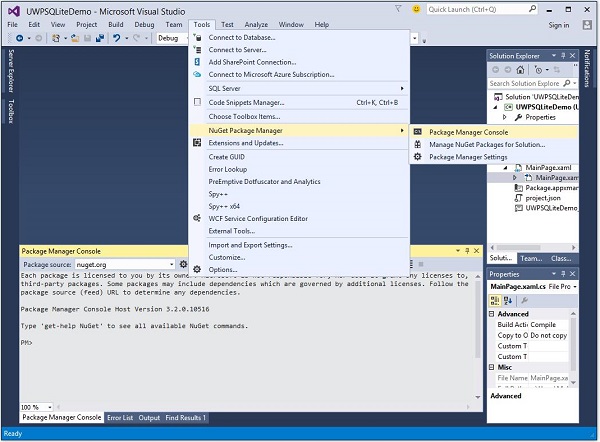
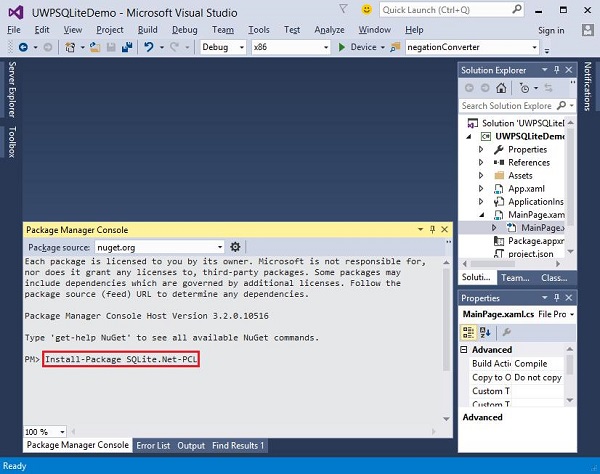
在程序包管理器控制台中输入以下命令,然后按 Enter 键执行此命令 −
Install-Package SQLite.Net-PCL
现在,在解决方案资源管理器中右键单击引用,然后选择添加引用。
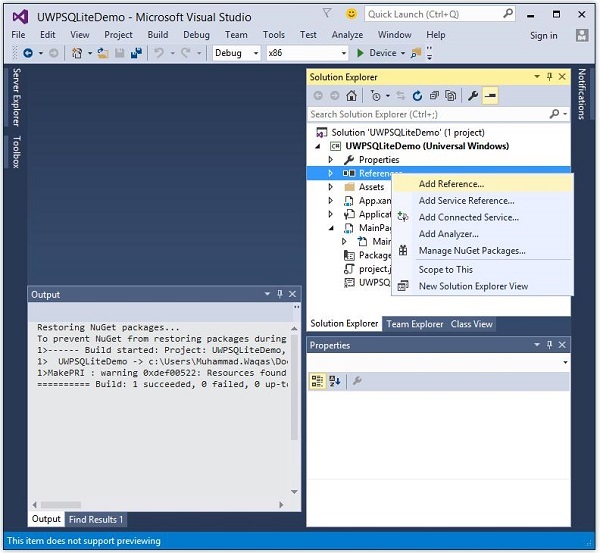
- 将打开以下对话框。
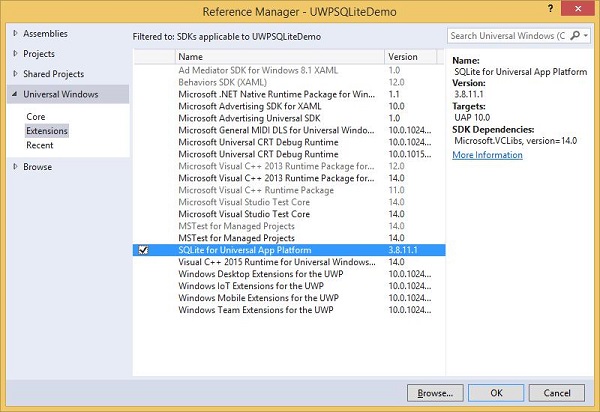
在左侧窗格中的通用 Windows下选择扩展,在中间窗格中勾选"通用应用平台"中的 SQLite,然后点击"确定"。
现在,您已准备好在 UWP 应用程序中使用 SQLite。
您可以使用以下代码创建数据库。
string path = Path.Combine(Windows.Storage.ApplicationData.
   Current.LocalFolder.Path, "db.sqlite");

SQLite.Net.SQLiteConnection conn = new SQLite.Net.SQLiteConnection(new
   SQLite.Net.Platform.WinRT.SQLitePlatformWinRT(), path);
要创建表,您需要调用 CreateTable 方法,并传入表名对象。
conn.CreateTable<Customer>();
您可以使用以下代码将数据插入表中。
conn.Insert(new Customer(){
   Name = textBox.Text,
   Age = textBox1.Text
});
下面给出了从表中检索数据的代码。
var query = conn.Table<Customer>();
string id = "";
string name = "";
string age = "";

foreach (var message in query) {
   id = id + " " + message.Id;
   name = name + " " + message.Name;
   age = age + " " + message.Age;
}
让我们通过一个简单的示例来了解如何创建数据库、表以及如何在数据库中插入和检索数据。我们将添加姓名和年龄,然后从表中检索相同的数据。下面给出了添加了不同控件的 XAML 代码。
<Page
   x:Class = "UWPSQLiteDemo.MainPage"
   xmlns = "http://schemas.microsoft.com/winfx/2006/xaml/presentation"
   xmlns:x = "http://schemas.microsoft.com/winfx/2006/xaml"
   xmlns:local = "using:UWPSQLiteDemo"
   xmlns:d = "http://schemas.microsoft.com/expression/blend/2008"
   xmlns:mc = "http://schemas.openxmlformats.org/markup-compatibility/2006"
   mc:Ignorable = "d">

   <Grid Background = "{ThemeResource ApplicationPageBackgroundThemeBrush}" >
      <Button x:Name = "Retrieve" Content = "Retrieve" HorizontalAlignment = "Left"
         VerticalAlignment = "Top" Margin = "384,406,0,0"
         Click = "Retrieve_Click"/>

      <Button x:Name = "Add" Content = "Add" HorizontalAlignment = "Left"
         VerticalAlignment = "Top" Margin = "291,406,0,0" Click = "Add_Click"/>

      <TextBlock x:Name = "textBlock" HorizontalAlignment = "Left"
         TextWrapping = "Wrap" Text = "Name" VerticalAlignment = "Top"
         Margin = "233,280,0,0" Width = "52"/>

      <TextBox x:Name = "textBox" HorizontalAlignment = "Left" TextWrapping = "Wrap"
         VerticalAlignment = "Top" Margin = "289,274,0,0" Width = "370"/>

      <TextBlock x:Name = "textBlock1" HorizontalAlignment = "Left"
         TextWrapping = "Wrap" Text = "Age" VerticalAlignment = "Top"
         Margin = "233,342,0,0" Width = "52"/>

      <TextBox x:Name = "textBox1" HorizontalAlignment = "Left" TextWrapping = "Wrap"
         VerticalAlignment = "Top" Margin = "289,336,0,0" Width = "191"/>

      <TextBlock x:Name = "textBlock2" HorizontalAlignment = "Left"
         Margin = "290,468,0,0" TextWrapping = "Wrap"
         VerticalAlignment = "Top" Width = "324" Height = "131"/>

   </Grid>

</Page>
下面给出了事件和 SQLite 数据库 的 C# 实现。
using SQLite.Net.Attributes;

using System;
using System.Collections.Generic;
using System.IO;
using System.Linq;
using System.Runtime.InteropServices.WindowsRuntime;

using Windows.Foundation;
using Windows.Foundation.Collections;

using Windows.UI.Xaml;
using Windows.UI.Xaml.Controls;
using Windows.UI.Xaml.Controls.Primitives;
using Windows.UI.Xaml.Data;
using Windows.UI.Xaml.Input;
using Windows.UI.Xaml.Media;
using Windows.UI.Xaml.Navigation;

// The Blank Page item template is documented at
   http://go.microsoft.com/fwlink/?LinkId=402352&clcid=0x409

namespace UWPSQLiteDemo {

   /// <summary>
      /// An empty page that can be used on its own or navigated to within a Frame.
   /// </summary>

   public sealed partial class MainPage : Page {
      string path;
      SQLite.Net.SQLiteConnection conn;

      public MainPage(){
         this.InitializeComponent();
         path = Path.Combine(Windows.Storage.ApplicationData.Current.LocalFolder.Path,
            "db.sqlite");
         conn = new SQLite.Net.SQLiteConnection(new
            SQLite.Net.Platform.WinRT.SQLitePlatformWinRT(), path);
         conn.CreateTable<Customer>();
      }

      private void Retrieve_Click(object sender, RoutedEventArgs e) {
         var query = conn.Table<Customer>();
         string id = "";
         string name = "";
         string age = "";

         foreach (var message in query) {
            id = id + " " + message.Id;
            name = name + " " + message.Name;
            age = age + " " + message.Age;
         }

         textBlock2.Text = "ID: " + id + "
Name: " + name + "
Age: " + age;
      }

      private void Add_Click(object sender, RoutedEventArgs e){

         var s = conn.Insert(new Customer(){
            Name = textBox.Text,
            Age = textBox1.Text
         });

      }
   }

   public class Customer {
      [PrimaryKey, AutoIncrement]
      public int Id { get; set; }
      public string Name { get; set; }
      public string Age { get; set; }
   }

}
编译并执行上述代码后,您将看到以下窗口。
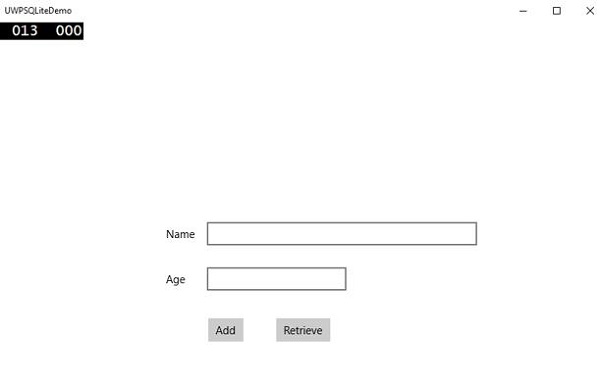
输入名称和年龄,然后点击添加按钮。
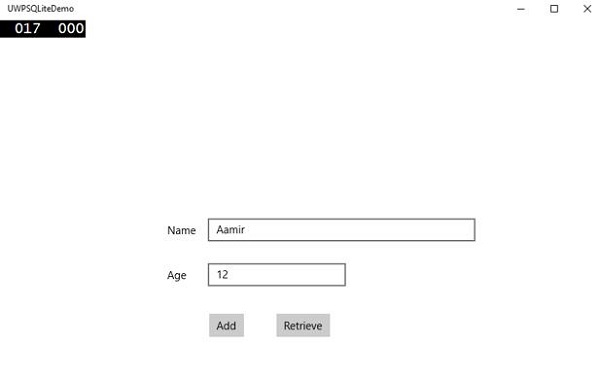
现在点击检索按钮。您将在文本块中看到以下数据。
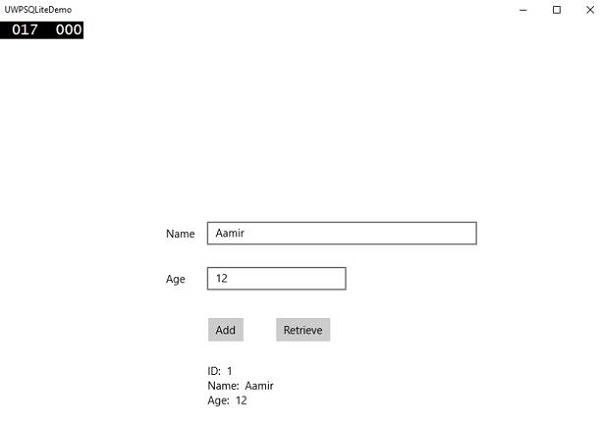
ID 字段是主键和自动递增字段,在 Customer 类中指定。
[PrimaryKey, AutoIncrement]
public int Id { get; set; }

