Windows10 开发 - 互联体验
众所周知,在 Windows 10 中,我们可以创建一个可在多台 Windows 10 设备上运行的应用程序。假设我们拥有这些不同的设备,并且我们希望让它感觉像是一个应用程序,即使它运行在不同的设备上。
在通用 Windows 平台 (UWP) 中,您可以在所有 Windows 10 设备上运行单个应用程序,并让用户感觉它是一个应用程序。这被称为互联体验。
互联体验的重要特性 −
Windows 10 迈向更加个性化计算的时代,您的应用、服务和内容可以无缝、轻松地跨设备移动。
借助互联体验,您可以轻松共享与该应用程序相关的数据和个人设置,并且该设置将在所有设备上可用。
在本章中,我们将学习 −
这些共享数据或设置的存储位置,以便您可以在设备上使用该应用程序。
如何识别用户;确保在不同设备上使用同一应用程序的用户是同一个人。
Windows 10 向前迈出了大胆的一步。当您使用 Microsoft 帐户 (MSA) 或企业或(工作)帐户登录 Windows 10 时,系统将假定 −
您可以免费访问 OneDrive for MSA 帐户,并且可以使用企业帐户访问 Active Directory (AD) 和 Azure Active Directory (AAD)(云版本)。
您可以访问不同的应用程序和资源。
设备和应用程序处于漫游状态和设置。
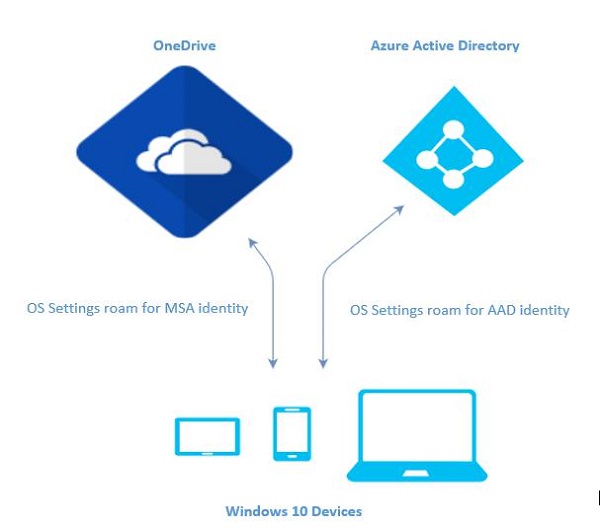
Windows 10 中的漫游
当您登录 PC 时,您可以设置一些首选项,例如锁定屏幕或背景颜色,或个性化您的各种设置。如果您有多台运行 Windows 10 的计算机或设备,当您使用同一帐户登录其他设备时,您在其中一台设备上的首选项和设置将从云端同步。
在 Windows 10 中,当您设置或个性化您的应用程序设置后,这些设置将通过 UWP 中提供的漫游 API 进行漫游。当您在其他设备上再次运行同一应用程序时,它将首先检索设置,并将这些设置应用于该设备上的应用程序。
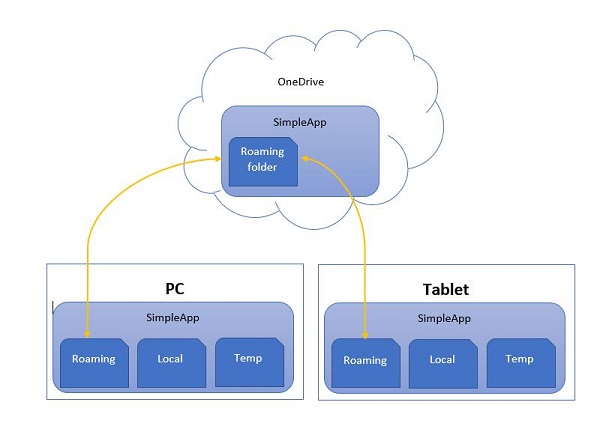
将漫游数据上传到云端的限制为 100KB。如果超过此限制,同步将停止,并且仅像本地文件夹一样运行。
RoamingSettings API 以字典的形式公开,应用程序可以在其中保存数据。
Windows.Storage.ApplicationDataContainer roamingSettings =
Windows.Storage.ApplicationData.Current.RoamingSettings;

// 从 RoamingSettings 中获取值
var colorName = roamingSettings.Values["PreferredBgColor"].ToString();

// 将值设置为 RoamingSettings
roamingSettings.Values["PreferredBgColor"] = "Green";
当 RoamingSettings 中的数据发生变化时,会触发 DataChanged 事件,您可以在此刷新设置。
Windows.Storage.ApplicationData.Current.DataChanged += RoamingDataChanged;

private void RoamingDataChanged(Windows.Storage.ApplicationData sender, object args) {
    // 漫游数据或设置中发生了一些变化
}
让我们看一个示例,我们将设置应用程序的背景颜色,这些设置将通过 UWP 中提供的漫游 API 进行漫游。
Given below is the XAML code in which different controls are added.
<Page
   x:Class = "RoamingSettingsDemo.Views.MainPage"
   xmlns = "http://schemas.microsoft.com/winfx/2006/xaml/presentation"
   xmlns:x = "http://schemas.microsoft.com/winfx/2006/xaml"
   xmlns:local = "using:RoamingSettingsDemo.Views"
   xmlns:d = "http://schemas.microsoft.com/expression/blend/2008"
   xmlns:mc = "http://schemas.openxmlformats.org/markup-compatibility/2006"
   mc:Ignorable = "d">

   <Grid x:Name = "MainGrid" Background = "{ThemeResource ApplicationPageBackgroundThemeBrush}">
      <Grid.RowDefinitions>
         <RowDefinition Height = "80" />
         <RowDefinition />
      </Grid.RowDefinitions>

      <StackPanel Orientation = "Horizontal" VerticalAlignment = "Top" Margin = "12,12,0,0">
         <TextBlock Style = "{StaticResource HeaderTextBlockStyle}"
            FontSize = "24" Text = "Connected Experience Demo" />
      </StackPanel>

      <Grid Grid.Row = "1" Margin = "0,80,0,0">
         <StackPanel Margin = "62,0,0,0">
            <TextBlock x:Name = "textBlock" HorizontalAlignment = "Left"
               TextWrapping = "Wrap" Text = "Choose your background color:"
               VerticalAlignment = "Top"/>

            <RadioButton x:Name = "BrownRadioButton" Content = "Brown"
               Checked = "radioButton_Checked" />

            <RadioButton x:Name = "GrayRadioButton" Content = "Gray"
               Checked = "radioButton_Checked"/>
         </StackPanel>
      </Grid>

   </Grid>

</Page>
下面给出了 RoamingSettings 和不同事件的 C# 实现。
using System;
using System.Collections.Generic;
using System.IO;
using System.Linq;
using System.Runtime.InteropServices.WindowsRuntime;

using Windows.Foundation;
using Windows.Foundation.Collections;

using Windows.UI;
using Windows.UI.Xaml;
using Windows.UI.Xaml.Controls;
using Windows.UI.Xaml.Controls.Primitives;
using Windows.UI.Xaml.Data;
using Windows.UI.Xaml.Input;
using Windows.UI.Xaml.Media;
using Windows.UI.Xaml.Navigation;

// The RoamingSettingsDemo Page item template is documented at
   http://go.microsoft.com/fwlink/?LinkId=234238

namespace RoamingSettingsDemo.Views {

   /// <summary>
      /// An empty page that can be used on its own or navigated to within a Frame.
   /// </summary>

   public sealed partial class MainPage : Page {

      public MainPage() {
         this.InitializeComponent();
      }

      protected override void OnNavigatedTo(NavigationEventArgs e) {
         SetBackgroundFromSettings();
         Windows.Storage.ApplicationData.Current.DataChanged += RoamingDataChanged;
      }

      protected override void OnNavigatedFrom(NavigationEventArgs e) {
         Windows.Storage.ApplicationData.Current.DataChanged -= RoamingDataChanged;
      }

      private void RoamingDataChanged(Windows.Storage.ApplicationData sender, object args) {

         // Something has changed in the roaming data or settings
         var ignore = Dispatcher.RunAsync(Windows.UI.Core.CoreDispatcherPriority.Normal,
            () ⇒ SetBackgroundFromSettings());
      }

      private void SetBackgroundFromSettings() {

         // Get the roaming settings
         Windows.Storage.ApplicationDataContainer roamingSettings =
            Windows.Storage.ApplicationData.Current.RoamingSettings;

         if (roamingSettings.Values.ContainsKey("PreferBrownBgColor")) {
            var colorName = roamingSettings.Values["PreferBrownBgColor"].ToString();

            if (colorName == "Gray") {
               MainGrid.Background = new SolidColorBrush(Colors.Gray);
               GrayRadioButton.IsChecked = true;
            } else if (colorName == "Brown") {
               MainGrid.Background = new SolidColorBrush(Colors.Brown);
               BrownRadioButton.IsChecked = true;
            }
         }

      }

      private void radioButton_Checked(object sender, RoutedEventArgs e){
         if (GrayRadioButton.IsChecked.HasValue &&
            (GrayRadioButton.IsChecked.Value == true)) {
               Windows.Storage.ApplicationData.Current.RoamingSettings.
                  Values["PreferBrownBgCo lor"] = "Gray";
         } else {
            Windows.Storage.ApplicationData.Current.RoamingSettings.
               Values["PreferBrownBgCo lor"] = "Brown";
         }

         SetBackgroundFromSettings();
      }

   }
}
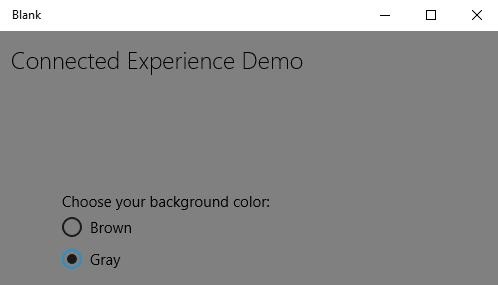
编译并执行上述代码后,您将看到以下窗口。
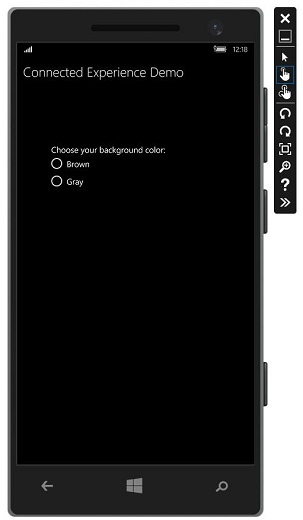
让我们选择灰色作为背景颜色并关闭此应用。
现在,当您在此设备或任何其他设备上运行此应用时,您将看到背景颜色已变为灰色。这表明该应用已成功在RoamingSettings中检索到背景颜色变化的信息。