
Windows 10 开发 - 服务
在本章中,我们将学习 UWP 应用如何帮助或为其他通用 Windows 平台 (UWP) 应用提供服务。实际上,本章是后台执行一章的延伸,是其特例。
在 Windows 10 中,应用服务是应用向其他应用提供服务的一种方式或机制。
应用服务以后台任务的形式工作。
前台应用可以调用其他应用中的应用服务在后台执行任务。
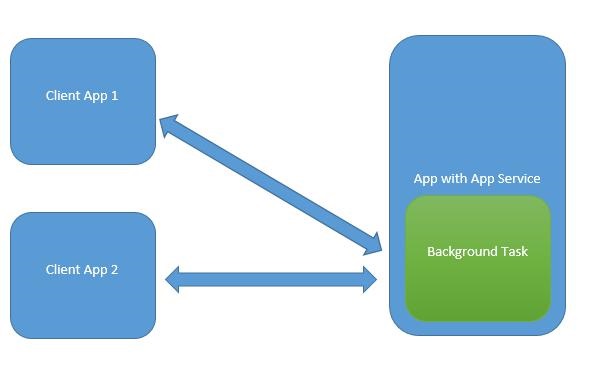
应用服务类似于 Web 服务,但应用服务是在 Windows 10 设备上使用的。
通用 Windows 平台 (UWP) 应用可以通过多种方式与其他 UWP 应用交互 −
- 使用 URI 关联LaunchUriAsync
- 使用 LaunchFileAsync 进行文件关联
- 使用 LaunchUriForResultsAsync 启动并获取结果
- 应用服务
前三种方式适用于两个应用都在前台的情况,但应用服务用于后台任务,在这种情况下,客户端应用必须处于前台并可以使用应用服务。
应用服务在提供非可视化服务的应用中非常有用,例如:条形码扫描器,前台应用会拍摄图像并将这些字节发送到应用服务以识别条形码。
为了理解所有这些概念,让我们在 Microsoft Visual Studio 2015 中创建一个名为 AppServiceProvider 的新 UWP 项目。
现在,在 Package.appmenifest 文件中添加以下信息。
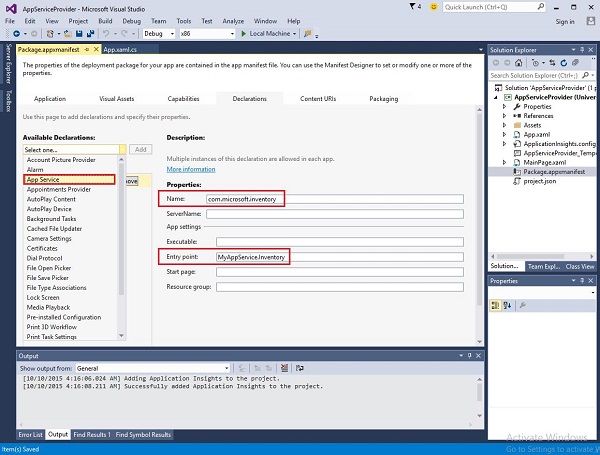
为了创建一个可由前台应用调用的应用服务,让我们在解决方案中添加一个名为 MyAppService 的新 Windows Runtime 组件项目,因为应用服务是作为后台任务实现的。
在 AppServiceProvider 中添加对 MyAppService 项目的引用项目。
现在从 MyAppService 项目中删除 class1.cs 文件,并添加一个名为 inventory 的新类,该类将实现 IBackgrounTask 接口。
IBackgrounTask 接口只有一个方法 "Run",需要为后台任务实现该方法。
public sealed class Inventory : IBackgroundTask {
   public void Run(IBackgroundTaskInstance taskInstance) {

   }
}
创建后台任务时,会调用 Run() 方法,当 Run 方法完成后,后台任务就会终止。为了保持后台任务的执行并处理请求,代码会采用延迟处理。
应用服务代码位于 OnRequestedReceived() 中。在此示例中,库存商品的索引传递给服务,以检索指定库存商品的名称和价格。
private async void OnRequestReceived(AppServiceConnection sender,
AppServiceRequestReceivedEventArgs args) {
    // 由于我们使用下面的可等待 API 来响应消息,因此需要延迟处理
}
以下是 Inventory 类在 C# 中的完整实现。
using System;
using System.Collections.Generic;
using System.Linq;
using System.Text;
using System.Threading.Tasks;

using Windows.ApplicationModel.AppService;
using Windows.ApplicationModel.Background;
using Windows.Foundation.Collections;

namespace MyAppService{
   public sealed class Inventory : IBackgroundTask {

      private BackgroundTaskDeferral backgroundTaskDeferral;
      private AppServiceConnection appServiceconnection;

      private String[] inventoryItems = new string[] { "Robot vacuum", "Chair" };
      private double[] inventoryPrices = new double[] { 129.99, 88.99 };

      public void Run(IBackgroundTaskInstance taskInstance) {
         this.backgroundTaskDeferral = taskInstance.GetDeferral();
         taskInstance.Canceled += OnTaskCanceled;
         var details = taskInstance.TriggerDetails as AppServiceTriggerDetails;

         appServiceconnection = details.AppServiceConnection;
         appServiceconnection.RequestReceived += OnRequestReceived;
      }

      private async void OnRequestReceived(AppServiceConnection sender,
         AppServiceRequestReceivedEventArgs args) {

            var messageDeferral = args.GetDeferral();
            ValueSet message = args.Request.Message;
            ValueSet returnData = new ValueSet();

            string command = message["Command"] as string;
            int? inventoryIndex = message["ID"] as int?;
            if (inventoryIndex.HasValue &&

            inventoryIndex.Value >= 0 &&
            inventoryIndex.Value < inventoryItems.GetLength(0)) {

               switch (command) {

                  case "Price": {
                     returnData.Add("Result", inventoryPrices[inventoryIndex.Value]);
                     returnData.Add("Status", "OK");
                     break;
                  }

                  case "Item": {
                     returnData.Add("Result", inventoryItems[inventoryIndex.Value]);
                     returnData.Add("Status", "OK");
                     break;
                  }

                  default: {
                     returnData.Add("Status", "Fail: unknown command");
                     break;
                  }
               } else {
                  returnData.Add("Status", "Fail: Index out of range");
               }
            }
            await args.Request.SendResponseAsync(returnData);
            messageDeferral.Complete();
      }

      private void OnTaskCanceled(IBackgroundTaskInstance sender,
         BackgroundTaskCancellationReason reason){
            if (this.backgroundTaskDeferral != null) {
               // Complete the service deferral.
               this.backgroundTaskDeferral.Complete();
            }
      }
   }
}
让我们通过添加一个新的空白 UWP 项目 ClientApp 来创建一个客户端应用程序,并在 XAML 文件中添加一个按钮、一个文本框和两个文本块,如下所示。
<Page
   x:Class = "ClientApp.MainPage"
   xmlns = "http://schemas.microsoft.com/winfx/2006/xaml/presentation"
   xmlns:x = "http://schemas.microsoft.com/winfx/2006/xaml"
   xmlns:local = "using:ClientApp"
   xmlns:d = "http://schemas.microsoft.com/expression/blend/2008"
   xmlns:mc = "http://schemas.openxmlformats.org/markup-compatibility/2006"
   mc:Ignorable = "d">

   <Grid Background = "{ThemeResource ApplicationPageBackgroundThemeBrush}">
      <TextBlock HorizontalAlignment = "Left" Text = "Enter Item No."
         Margin = "52,40,0,0" TextWrapping = "Wrap"
         VerticalAlignment = "Top" Height = "32" Width = "268"/>

      <Button x:Name = "button" Content = "Get Info" HorizontalAlignment = "Left"
         Margin = "255,96,0,0" VerticalAlignment = "Top" Click = "button_Click"/>

      <TextBox x:Name = "textBox" HorizontalAlignment = "Left" Margin = "52,96,0,0"
         TextWrapping = "Wrap" VerticalAlignment = "Top" Width = "168"/>

      <TextBlock x:Name = "textBlock" HorizontalAlignment = "Left"
         Margin = "52,190,0,0" TextWrapping = "Wrap"
         VerticalAlignment = "Top" Height = "32" Width = "268"/>
   </Grid>

</Page>
下面给出了请求应用服务的按钮点击事件实现。
using System;

using Windows.ApplicationModel.AppService;
using Windows.Foundation.Collections;

using Windows.UI.Xaml;
using Windows.UI.Xaml.Controls;

// 空白页项目模板记录在
   http://go.microsoft.com/fwlink/?LinkId=402352&clcid=0x409

namespace ClientApp {

   /// <summary>
      /// An empty page that can be used on its own or navigated to within a Frame.
   /// </summary>

   public sealed partial class MainPage : Page {

      private AppServiceConnection inventoryService;

      public MainPage() {
         this.InitializeComponent();
      }

      private async void button_Click(object sender, RoutedEventArgs e){

         // Add the connection.
         if (this.inventoryService == null) {

            this.inventoryService = new AppServiceConnection();
            this.inventoryService.AppServiceName = "com.microsoft.inventory";
            this.inventoryService.PackageFamilyName =
               "bb1a8478-8005-46869923-e525ceaa26fc_4sz2ag3dcq60a";

            var status = await this.inventoryService.OpenAsync();

            if (status != AppServiceConnectionStatus.Success) {
               button.Content = "Failed to connect";
               return;
            }
         }

         // Call the service.
         int idx = int.Parse(textBox.Text);
         var message = new ValueSet();

         message.Add("Command", "Item");
         message.Add("ID", idx);

         AppServiceResponse response = await
            this.inventoryService.SendMessageAsync(message);
         string result = "";

         if (response.Status == AppServiceResponseStatus.Success) {
            // Get the data  that the service sent  to us.
            if (response.Message["Status"] as string == "OK") {
               result = response.Message["Result"] as string;
            }
         }

         message.Clear();
         message.Add("Command", "Price");
         message.Add("ID", idx);

         response = await this.inventoryService.SendMessageAsync(message);

         if (response.Status == AppServiceResponseStatus.Success){
            // Get the data that the service sent to us.
            if (response.Message["Status"] as string == "OK") {
               result += " : Price = " + "$"+ response.Message["Result"] as string;
            }
         }

         textBlock.Text = result;
      }
   }
}
要运行此应用程序,您需要在解决方案资源管理器中将 ClientApp 项目设置为启动项目,然后从"构建 > 部署解决方案"部署此解决方案。
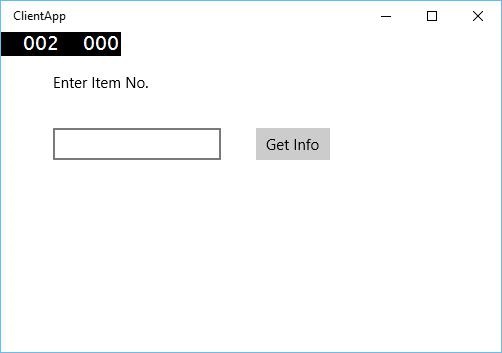
编译并执行上述代码后,您将看到以下窗口。在"应用服务"中,我们刚刚添加了两个项目的信息。因此,您可以输入 0 或 1 来获取这两个项目的信息。
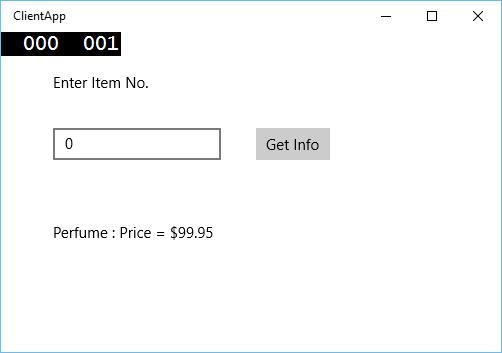
输入 0 并点击按钮后,它将以后台任务的形式运行应用服务,并在文本块上显示项目信息。

