Windows10 开发 - 应用通信
应用间通信是指您的应用可以与安装在同一设备上的其他应用进行通信。这并非通用 Windows 平台 (UWP) 的新功能,Windows 8.1 中也曾提供此功能。
Windows 10 引入了一些全新改进的方法,以便在同一设备上的应用之间轻松通信。两个应用之间的通信可以通过以下方式实现:−
- 一个应用启动另一个应用并传输一些数据。
- 应用之间只是交换数据,无需启动任何应用。
应用间通信的主要优势在于,您可以将应用拆分成更小的块,以便于维护、更新和使用。
准备您的应用
如果您按照以下步骤操作,其他应用就可以启动您的应用。
在应用程序包清单中添加协议声明。
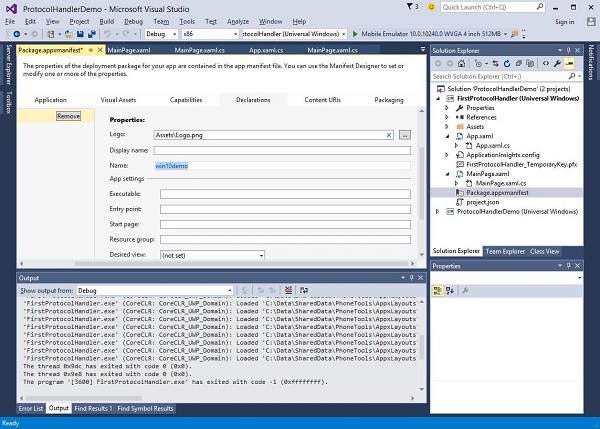
双击 Package.appxmanifest 文件,该文件在解决方案资源管理器中可用,如下所示。
转到 Declaration 选项卡,并输入协议名称,如下所示。
下一步是添加 activation 代码,以便应用在由其他应用程序启动时能够做出适当的响应。
为了响应协议激活,我们需要重写激活类的 OnActivated 方法。因此,在 App.xaml.cs 文件中添加以下代码。
protected override void OnActivated(IActivatedEventArgs args) {

   ProtocolActivatedEventArgs protocolArgs = args as ProtocolActivatedEventArgs;

   if (args != null){

      Frame rootFrame = Window.Current.Content as Frame;

      // Do not repeat app initialization when the Window already has content,
      // just ensure that the window is active

      if (rootFrame == null){

         // Create a Frame to act as the navigation context and navigate to the first page
         rootFrame = new Frame();

         // Set the default language
         rootFrame.Language = Windows.Globalization.ApplicationLanguages.Languages[0];
         rootFrame.NavigationFailed += OnNavigationFailed;

         // Place the frame in the current Window
         Window.Current.Content = rootFrame;
      }

      if (rootFrame.Content == null){

         // When the navigation stack isn't restored, navigate to the
         // first page, configuring the new page by passing required
         // information as a navigation parameter

         rootFrame.Navigate(typeof(MainPage), null);
      }

      // Ensure the current window is active
      Window.Current.Activate();

   }
}
要启动应用程序,您只需使用 Launcher.LaunchUriAsync 方法即可,该方法将使用此方法中指定的协议启动应用程序。
await Windows.System.Launcher.LaunchUriAsync(new Uri("win10demo:?SomeData=123"));
让我们通过一个简单的示例来理解这一点,其中我们有两个 UWP 应用程序,分别为 ProtocolHandlerDemo 和 FirstProtocolHandler。
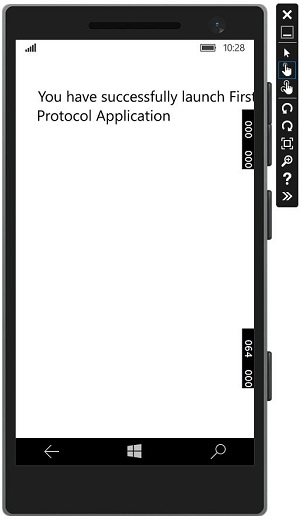
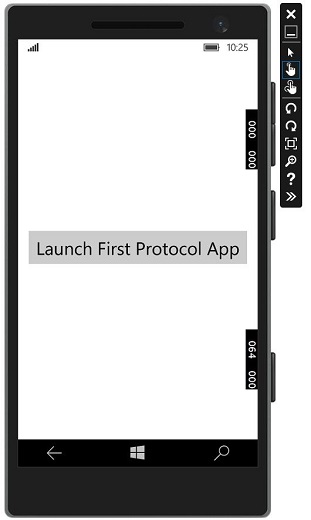
在此示例中,ProtocolHandlerDemo 应用程序包含一个按钮,点击该按钮将打开 FirstProtocolHandler 应用程序。
包含一个按钮的 ProtocolHandlerDemo 应用程序中的 XAML 代码如下所示。
<Page
   x:Class = "ProtocolHandlerDemo.MainPage"
   xmlns = "http://schemas.microsoft.com/winfx/2006/xaml/presentation"
   xmlns:x = "http://schemas.microsoft.com/winfx/2006/xaml"
   xmlns:local = "using:ProtocolHandlerDemo"
   xmlns:d = "http://schemas.microsoft.com/expression/blend/2008"
   xmlns:mc = "http://schemas.openxmlformats.org/markup-compatibility/2006"
   mc:Ignorable = "d">

   <Grid Background = "{ThemeResource ApplicationPageBackgroundThemeBrush}">
      <Button x:Name = "LaunchButton" Content = " Launch First Protocol App"
         FontSize = "24" HorizontalAlignment = "Center"
         Click = "LaunchButton_Click"/>
   </Grid>

</Page>
以下是实现按钮点击事件的 C# 代码。
using System;
using Windows.UI.Xaml;
using Windows.UI.Xaml.Controls;

// 空白页项目模板的文档位于
   http://go.microsoft.com/fwlink/?LinkId=402352&clcid=0x409

namespace ProtocolHandlerDemo {

   /// <summary>
      /// An empty page that can be used on its own or navigated to within a Frame.
   /// </summary>

   public sealed partial class MainPage : Page {

      public MainPage(){
         this.InitializeComponent();
      }

      private async void LaunchButton_Click(object sender, RoutedEventArgs e) {
         await Windows.System.Launcher.LaunchUriAsync(new
            Uri("win10demo:?SomeData=123"));
      }

   }
}
现在让我们看一下 FirstProtocolHandler 应用程序表。下面给出了创建带有一些属性的文本块的 XAML 代码。
<Page
   x:Class = "FirstProtocolHandler.MainPage"
   xmlns = "http://schemas.microsoft.com/winfx/2006/xaml/presentation"
   xmlns:x = "http://schemas.microsoft.com/winfx/2006/xaml"
   xmlns:local = "using:FirstProtocolHandler"
   xmlns:d = "http://schemas.microsoft.com/expression/blend/2008"
   xmlns:mc = "http://schemas.openxmlformats.org/markup-compatibility/2006"
   mc:Ignorable = "d">

   <Grid Background = "{ThemeResource ApplicationPageBackgroundThemeBrush}">
      <TextBlock Text = "You have successfully launch First Protocol Application"
         TextWrapping = "Wrap" Style = "{StaticResource SubtitleTextBlockStyle}"
         Margin = "30,39,0,0" VerticalAlignment = "Top" HorizontalAlignment = "Left"
         Height = "100" Width = "325"/>
   </Grid>

</Page>
App.xaml.cs 文件的 C# 实现,其中覆盖了 OnActicated 函数,如下所示。请在 App.xaml.cs 文件的 App 类中添加以下代码。
protected override void OnActivated(IActivatedEventArgs args) {
   ProtocolActivatedEventArgs protocolArgs = args as ProtocolActivatedEventArgs;

   if (args != null) {
      Frame rootFrame = Window.Current.Content as Frame;

      // Do not repeat app initialization when the Window already has content,
      // just ensure that the window is active

      if (rootFrame == null) {

         // Create a Frame to act as the navigation context and navigate to
            the first page
         rootFrame = new Frame();

         // Set the default language
         rootFrame.Language = Windows.Globalization.ApplicationLanguages.Languages[0];
         rootFrame.NavigationFailed += OnNavigationFailed;

         // Place the frame in the current Window
         Window.Current.Content = rootFrame;
      }

      if (rootFrame.Content == null) {

         // When the navigation stack isn't restored navigate to the
         // first page, configuring the new page by passing required
         // information as a navigation parameter

         rootFrame.Navigate(typeof(MainPage), null);
      }

      // Ensure the current window is active
      Window.Current.Activate();
   }
}
在模拟器上编译并执行 ProtocolHandlerDemo 应用程序时,您将看到以下窗口。
现在,当您点击按钮时,它将打开 FirstProtocolHandler 应用程序,如下所示。