
Windows 10 开发 - 第一个应用
在本章中,我们将在 Windows 10 上的通用 Windows 平台 (UWP) 上使用 XAML 和 C# 创建我们的第一个简单应用 "Hello world"。我们将演示如何在任何 Windows 10 设备上运行和执行在 Visual Studio 中创建的单个 UWP 应用。
让我们按照以下步骤开始创建应用。
启动 Visual Studio 2015。
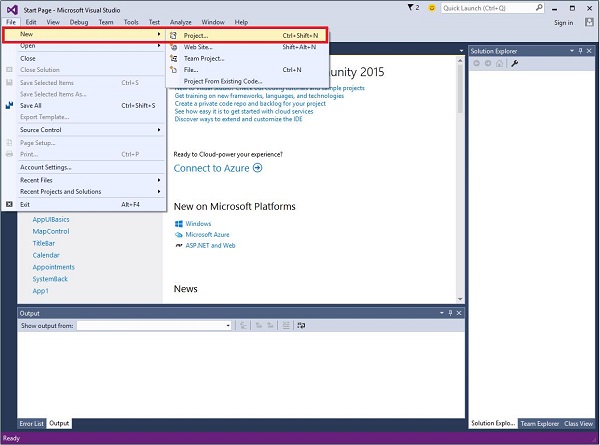
点击文件菜单,然后选择新建 > 项目。
将显示以下新建项目对话框。您可以在对话框的左侧窗格中看到不同类型的模板。
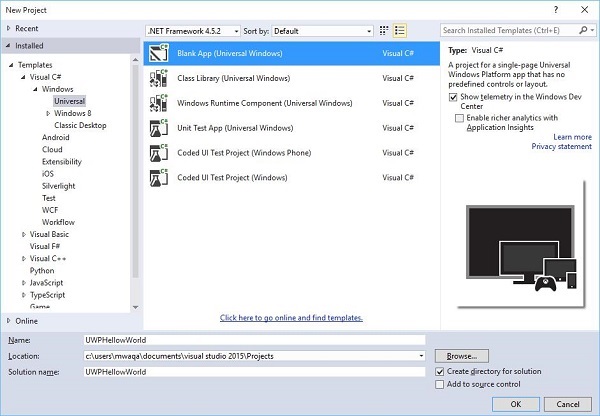
在左侧窗格中,您可以看到树状视图。从模板 > Visual C# > 中选择通用模板。 Windows。
在中心窗格中,选择空白应用(通用 Windows)模板
在名称字段中写入UWPHelloWorld,为项目命名。
点击确定即可创建一个新的 UWP 项目。
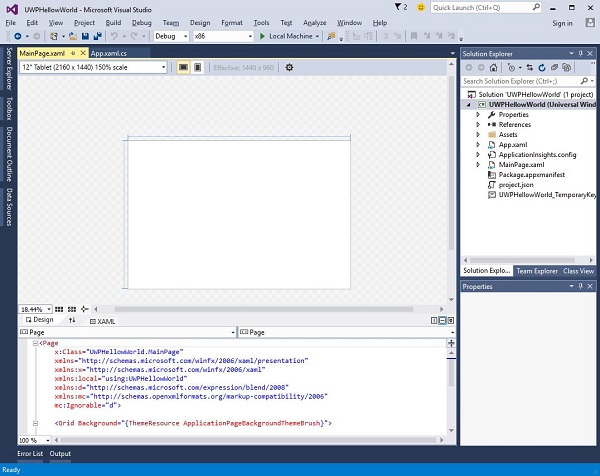
您可以在解决方案资源管理器中看到新创建的项目。
这是一个空白应用,但包含许多文件,这是任何 UWP 应用程序的最低要求。
MainPage.xaml 和MainPage.xaml.cs 在您执行应用程序时运行。
默认情况下,MainPage.xaml 文件包含以下信息。
<Page
   x:Class = "UWPHellowWorld.MainPage"
   xmlns = "http://schemas.microsoft.com/winfx/2006/xaml/presentation"
   xmlns:x = "http://schemas.microsoft.com/winfx/2006/xaml"
   xmlns:local = "using:UWPHellowWorld"
   xmlns:d = "http://schemas.microsoft.com/expression/blend/2008"
   xmlns:mc = "http://schemas.openxmlformats.org/markup-compatibility/2006"
   mc:Ignorable = "d">

   <Grid Background = "{ThemeResource ApplicationPageBackgroundThemeBrush}">
   </Grid>

</Page>
下面给出的是 MainPage.xaml.cs 中可用的默认信息。
using System;
using System.Collections.Generic;
using System.IO;
using System.Linq;
using System.Runtime.InteropServices.WindowsRuntime;

using Windows.Foundation;
using Windows.Foundation.Collections;

using Windows.UI.Xaml;
using Windows.UI.Xaml.Controls;
using Windows.UI.Xaml.Controls.Primitives;
using Windows.UI.Xaml.Data;
using Windows.UI.Xaml.Input;
using Windows.UI.Xaml.Media;
using Windows.UI.Xaml.Navigation;

// The Blank Page item template is documented at
   http://go.microsoft.com/fwlink/?LinkId=402352&clcid=0x409

namespace UWPHellowWorld {

   /// <summary>
      /// An empty page that can be used on its own or navigated to within a Frame.
   /// </summary>

   public sealed partial class MainPage : Page {
      public MainPage(){
         this.InitializeComponent();
      }
   }

}
让我们添加一些文本块、一个文本框和一个按钮,如下面的 XAML 代码所示。
<Page
   x:Class = "UWPHellowWorld.MainPage"
   xmlns = "http://schemas.microsoft.com/winfx/2006/xaml/presentation"
   xmlns:x = "http://schemas.microsoft.com/winfx/2006/xaml"
   xmlns:local = "using:UWPHellowWorld"
   xmlns:d = "http://schemas.microsoft.com/expression/blend/2008"
   xmlns:mc = "http://schemas.openxmlformats.org/markup-compatibility/2006"
   mc:Ignorable = "d">

   <Grid Background = "{ThemeResource ApplicationPageBackgroundThemeBrush}">

      <StackPanel HorizontalAlignment = "Center">
         <TextBlock Text = "Hello, world!"  Margin = "20"  Width = "200"
            HorizontalAlignment = "Left"/>

         <TextBlock Text = "Write your name." Margin = "20" Width = "200"
            HorizontalAlignment = "Left"/>

         <TextBox x:Name = "txtbox"  Width = "280" Margin = "20"
            HorizontalAlignment = "Left"/>

         <Button x:Name = "button" Content = "Click Me" Margin = "20"
            Click = "button_Click"/>

         <TextBlock x:Name = "txtblock" HorizontalAlignment = "Left"
            Margin = "20"/>
      </StackPanel>

   </Grid>

</Page>
- 下面给出的是 C# 中的点击事件按钮。
using System;
using System.Collections.Generic;
using System.IO;
using System.Linq;

using System.Runtime.InteropServices.WindowsRuntime;
using Windows.Foundation;
using Windows.Foundation.Collections;

using Windows.UI.Xaml;
using Windows.UI.Xaml.Controls;
using Windows.UI.Xaml.Controls.Primitives;
using Windows.UI.Xaml.Data;
using Windows.UI.Xaml.Input;
using Windows.UI.Xaml.Media;
using Windows.UI.Xaml.Navigation;

// The Blank Page item template is documented at
   http://go.microsoft.com/fwlink/?LinkId=402352&clcid=0x409

namespace UWPHellowWorld {

   /// <summary>
      /// An empty page that can be used on its own or navigated to within a Frame.
   /// </summary>

   public sealed partial class MainPage : Page {
      public MainPage() {
         this.InitializeComponent();
      }

      private void button_Click(object sender, RoutedEventArgs e) {
         if (txtbox.Text != "")
            txtblock.Text = "Hello: " + txtbox.Text;
         else
            txtblock.Text = "You have not write your name";
      }

   }

}
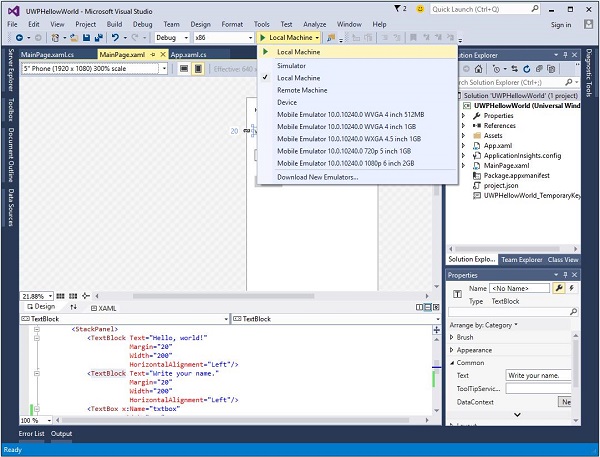
在 UWP 项目中,设计窗口上提供了设备预览选项,您可以借助该选项轻松更改布局,使其适应应用程序所针对的设备系列中所有设备的屏幕尺寸。
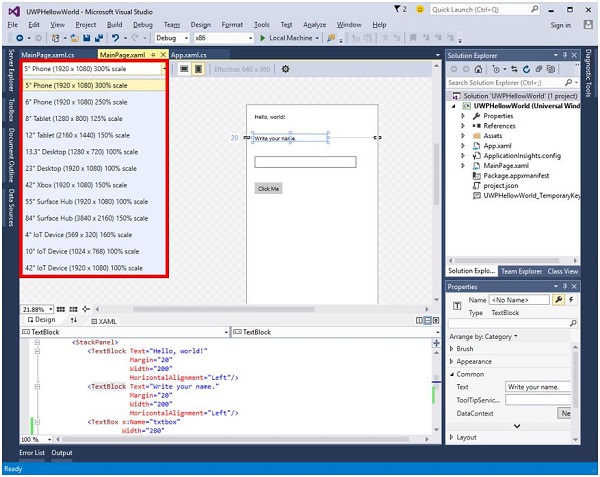
您可以在本地计算机、模拟器、仿真器或远程设备上运行和测试您的应用。您可以从如下所示的菜单中选择目标设备 −
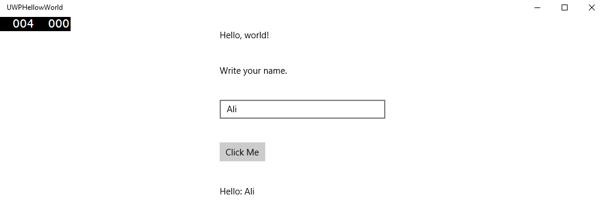
让我们在本地机器上运行上述代码,您将看到以下窗口。现在,在文本框中输入任意名称,然后点击按钮 Click Me。
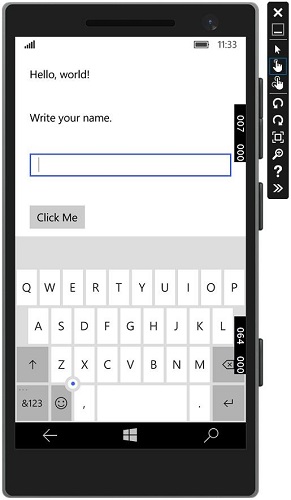
现在,如果您想在模拟器上测试您的应用,您可以从菜单中选择一个特定的模拟器并执行您的应用。您将看到以下模拟器 −
我们建议您使用不同的设备执行上述应用程序。

