
Google AMP - 视频
amp 中的 Amp-video 是用于播放直接视频嵌入的标准 html5 视频。在本章中,让我们了解如何使用 amp-video。
要使用 amp-video,我们需要添加以下脚本 −
<script async custom-element = "amp-video"
src = "https://cdn.ampproject.org/v0/amp-video-0.1.js">
</script>
Amp-video 具有 src 属性,该属性包含要加载的视频资源,由 amp 在运行时延迟加载。此外,所有功能几乎与 html5 video 标签相同。
以下是要添加到 amp video 的节点 −
Source − 您可以使用此标签添加要播放的不同媒体文件。
Track − 此标签可让您为视频启用字幕。
Placeholder − 此占位符标签将在视频开始前显示内容。
Fallback − 当浏览器不支持 HTML5 video 时,将调用此标签。
amp-video 标签的格式
此处显示 amp-video 标签的格式 −
<amp-video controls width = "640" height = "360"
   layout = "responsive" poster = "images/videoposter.png">
   <source src = "video/bunny.webm" type = "video/webm" />
   <source src = "video/samplevideo.mp4" type = "video/mp4" />

   <div fallback>
      <p>This browser does not support the video element.</p>
   </div>
</amp-video>
让我们使用如下所示的工作示例来了解 amp-video −
示例
<!doctype html>
<html amp lang = "en">
   <head>
      <meta charset = "utf-8">
      <script async src = "https://cdn.ampproject.org/v0.js"></script>
      <title>Google AMP - Amp Video</title>
      <link rel = "canonical" href =  "http://example.ampproject.org/article-metadata.html">
      <meta name = "viewport" content = "width = device-width, minimum-scale = 1,initial-scale=1">

      <style amp-boilerplate>
         body {
            -webkit-animation:
            -amp-start 8s steps(1,end) 0s 1 normal both;-moz-animation:
            -amp-start 8s steps(1,end) 0s 1 normal both;-ms-animation:
            -amp-start 8s steps(1,end) 0s 1 normal both;animation:
            -amp-start 8s steps(1,end) 0s 1 normal both}
         @-webkit-keyframes
         -amp-start{from{visibility:hidden}to{visibility:visible}}@-moz-keyframes
         -amp-start{from{visibility:hidden}to{visibility:visible}}@-ms-keyframes
         -amp-start{from{visibility:hidden}to{visibility:visible}}@-o-keyframes
         -amp-start{from{visibility:hidden}to{visibility:visible}}@keyframes
         -amp-start{from{visibility:hidden}to{visibility:visible}}
      </style>
      <noscript>
         <style amp-boilerplate>
            body {
               -webkit-animation:none;
               -moz-animation:none;
               -ms-animation:none;
               animation:none
            }
         </style>
      </noscript>

      <script async custom-element = "amp-video"
         src = "https://cdn.ampproject.org/v0/amp-video-0.1.js">
      </script>
   </head>
   <body>
      <h3>Google AMP - Amp Video</h3>
      <amp-video controls
         width = "640"
         height = "360"
         layout = "responsive"
         poster = "images/videoposter.png">
         <source src = "video/bunny.webm" type = "video/webm" />
         <source src = "video/samplevideo.mp4" type = "video/mp4" />

         <div fallback>
            <p>This browser does not support the video element.</p>
         </div>
      </amp-video>
   </body>
</html>
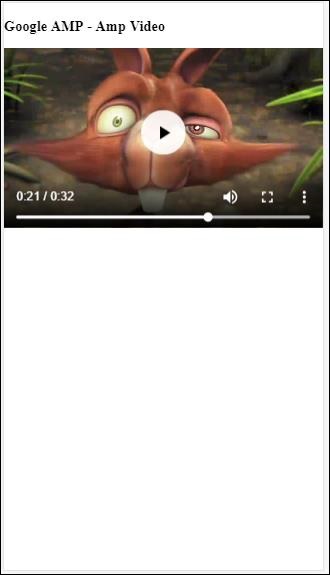
输出
上述代码的输出如下所示 −
amp-video 可用的属性
amp-video 可用的属性列在此处的表格中 −
| Sr.No | 属性和说明 |
|---|---|
| 1 | src 如果 <source>节点不存在,则必须指定 src,并且它必须是 https:// url。 |
| 2 | poster 海报采用视频开始前显示的图像网址。 |
| 3 | autoplay 如果浏览器支持,在 amp-video 上使用此属性将自动播放视频。视频将以静音模式播放,用户必须点击视频才能取消静音。 |
| 4 | controls 在 amp-video 上使用此属性将在视频上显示类似于 html5 的控件视频。 |
| 5 | loop 如果 amp-video 上存在此属性,视频将在播放结束后再次播放。 |
| 6 | crossorigin 如果播放视频的资源位于不同的来源,则此属性会发挥作用。 |
| 7 | rotate-to-fullscreen 如果视频可见,则在用户将设备旋转到横向模式后,视频将全屏显示 |
自动播放 AMP 视频
我们可以使用autoplay 属性,以防我们需要自动播放视频。此功能将根据浏览器支持情况工作。请注意,自动播放时视频将处于静音状态。当用户点击视频时,它将取消静音。
让我们借助下面给出的工作示例来使用自动播放功能 −
示例
<!doctype html>
<html amp lang = "en">
   <head>
      <meta charset = "utf-8">
      <script async src = "https://cdn.ampproject.org/v0.js"></script>
      <title>Google AMP - Amp Video</title>
      <link rel = "canonical" href = "http://example.ampproject.org/article-metadata.html">

      <meta name = "viewport" content = "width=device-width,minimum-scale = 1, initial-scale = 1">

      <style amp-boilerplate>
         body {
            -webkit-animation:
            -amp-start 8s steps(1,end) 0s 1 normal both;
            -moz-animation:-amp-start 8s steps(1,end) 0s 1 normal both;-ms-animation:
            -amp-start 8s steps(1,end) 0s 1 normal both;animation:
            -amp-start 8s steps(1,end) 0s 1 normal both
         }
         @-webkit-keyframes
         -amp-start{from{visibility:hidden}to{visibility:visible}}@-moz-keyframes
         -amp-start{from{visibility:hidden}to{visibility:visible}}@-ms-keyframes
         -amp-start{from{visibility:hidden}to{visibility:visible}}@-o-keyframes
         -amp-start{from{visibility:hidden}to{visibility:visible}}@keyframes
         -amp-start{from{visibility:hidden}to{visibility:visible}}
      </style>
      <noscript>
         <style amp-boilerplate>
            body{
               -webkit-animation:none;
               -moz-animation:none;
               -ms-animation:none;
               animation:none
            }
         </style>
      </noscript>

      <script async custom-element = "amp-video" src = "
         https://cdn.ampproject.org/v0/amp-video-0.1.js">
      </script>
   </head>
   <body>
      <h3>Google AMP - Amp Video Autoplay</h3>
      <amp-video controls
         width = "640"
         height = "360"
         layout = "responsive"
         poster = "images/videoposter.png" autoplay>
         <source src = "video/bunny.webm" type = "video/webm" />
         <source src = "video/samplevideo.mp4" type = "video/mp4" />
         <div fallback>
            <p>This browser does not support the video element.</p>
         </div>
      </amp-video>
   </body>
</html>
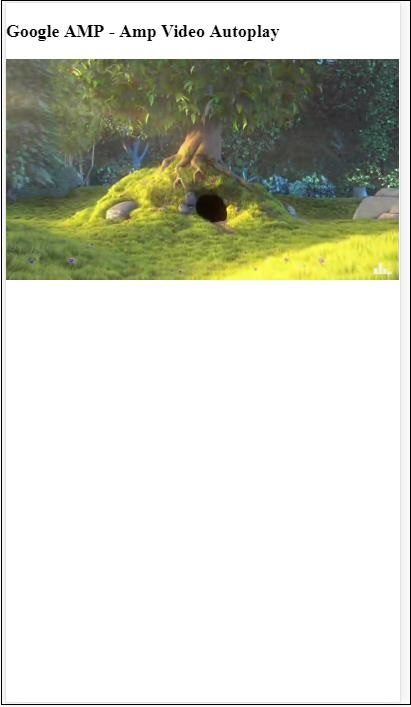
您可以通过添加控件属性来激活视频控件,如以下代码所示 −
<amp-video controls
   width = "640"
   height = "360"
   layout = "responsive"
   poster = "images/videoposter.png" autoplay>
   <source src = "video/bunny.webm" type = "video/webm" />
   <source src = "video/samplevideo.mp4" type = "video/mp4" />
   <div fallback>
      <p>This browser does not support the video element.</p>
   </div>
</amp-video>

