Kivy - 复选框
在任何 GUI 工具包中,复选框都用于使用户从可用选项中选择一个或多个选项。在 Kivy 中,复选框可以配置为使选择互斥(只有一个可用选项可供选择),或者让用户标记任意数量的选项。
如果两个或多个复选框的 group 属性值相同,则它们显示为圆形单选按钮;用户只能选择一个选项,因为只有一个复选框的 active 属性可以为 True,其他复选框的 active 属性将自动为 False。
对于没有 group 属性的复选框,它显示为一个矩形框,按下时会显示一个复选标记,其 active 属性变为 True。再次点击它,复选标记被移除,active 属性变为 False。
CheckBox 类在 kivy.uix.checkbox 模块中定义
from kivy.uix.checkbox import CheckBox
cb = CheckBox(**kwargs)
如果将 checkbox 对象绑定到其 active 属性,则每次 active 属性更改时都可以调用回调。
checkbox = CheckBox()
checkbox.bind(active=callback)
示例
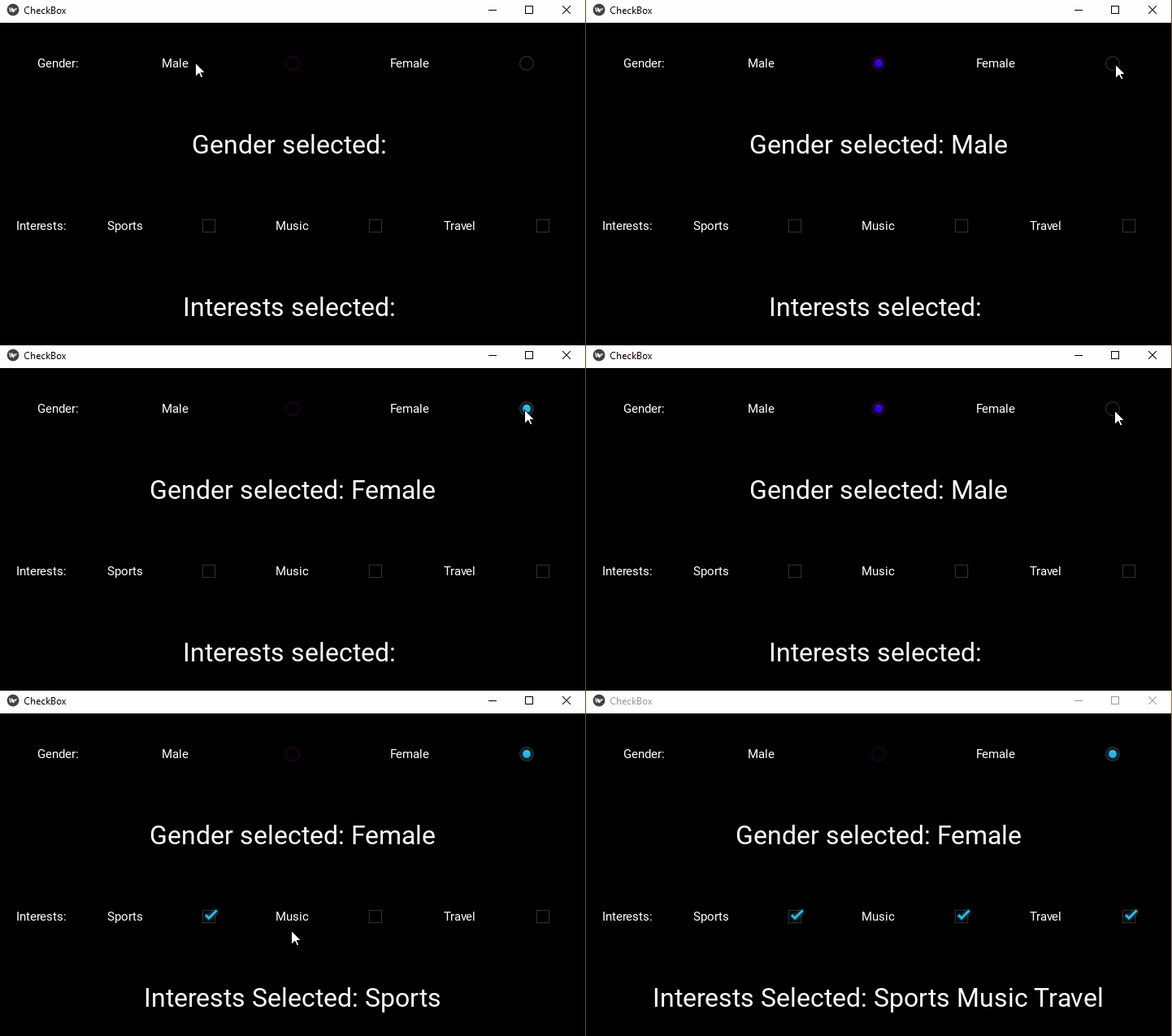
以下 Python 代码展示了如何使用互斥的复选框以及可多选的复选框。
代码使用一个垂直 BoxLayout,其中包含两个水平布局和两个标签。上方水平布局包含两个复选框,其组属性均为"性别"
self.m = CheckBox(group='sex', color=[1,0,1,1])
self.m.bind(active=self.on_male)
gendergrp.add_widget(self.m)
gendergrp.add_widget(Label(text='Female'))
self.f = CheckBox(active=False, group='sex')
self.f.bind(active=self.on_female)
gendergrp.add_widget(self.f)
两个复选框均调用一个回调方法,用于标识活动属性。
下方水平框包含三个独立的复选框−
interests.add_widget(Label(text='Sports'))
self.cb1 = CheckBox()
self.cb1.bind(active=self.on_interest)
interests.add_widget(self.cb1)

self.cb2 = CheckBox()
self.cb2.bind(active=self.on_interest)
interests.add_widget(Label(text='Music'))
interests.add_widget(self.cb2)

self.cb3 = CheckBox()
self.cb3.bind(active=self.on_interest)
interests.add_widget(Label(text='Travel'))
interests.add_widget(self.cb3)
当点击每个复选框时,将构建一个选定兴趣的列表,并显示在水平框下方的标签上。
以下是完整代码 −
from kivy.app import App
from kivy.uix.label import Label
from kivy.uix.checkbox import CheckBox
from kivy.uix.boxlayout import BoxLayout
from kivy.core.window import Window

Window.size = (720,400)
class CheckBoxApp(App):
   gender=''
   intrst=[]
   def on_male(self, instance, value):
      if value:
         CheckBoxApp.gender='Male'
         self.lbl.text = "Gender selected: "+CheckBoxApp.gender
      else:
         self.lbl.text = "Gender selected: "
   def on_female(self, instance, value):
      if value:
         CheckBoxApp.gender='Female'
         self.lbl.text = "Gender selected: "+CheckBoxApp.gender
      else:
         self.lbl.text = "Gender selected: "
   def on_interest(self, instance, value):
      CheckBoxApp.intrst=[]
      if self.cb1.active:
         CheckBoxApp.intrst.append("Sports")
      if self.cb2.active:
         CheckBoxApp.intrst.append("Music")
      if self.cb3.active:
         CheckBoxApp.intrst.append("Travel")
      self.lbl1.text="Interests Selected: "+" ".join(CheckBoxApp.intrst)

   def build(self):
      main=BoxLayout(orientation='vertical')

      gendergrp=BoxLayout(orientation='horizontal')
      interests = BoxLayout(orientation='horizontal')

      gendergrp.add_widget(Label(text='Gender:'))
      gendergrp.add_widget(Label(text='Male'))
      self.m = CheckBox(group='sex', color=[1,0,1,1])
      self.m.bind(active=self.on_male)
      gendergrp.add_widget(self.m)
      gendergrp.add_widget(Label(text='Female'))
      self.f = CheckBox(active=False, group='sex')
      self.f.bind(active=self.on_female)

      gendergrp.add_widget(self.f)
      main.add_widget(gendergrp)
      self.lbl = Label(text="Gender selected: ", font_size=32)

      main.add_widget(self.lbl)

      interests.add_widget(Label(text='Interests:'))
      interests.add_widget(Label(text='Sports'))
      self.cb1 = CheckBox()
      self.cb1.bind(active=self.on_interest)
      interests.add_widget(self.cb1)

      self.cb2 = CheckBox()
      self.cb2.bind(active=self.on_interest)
      interests.add_widget(Label(text='Music'))
      interests.add_widget(self.cb2)

      self.cb3 = CheckBox()
      self.cb3.bind(active=self.on_interest)
      interests.add_widget(Label(text='Travel'))
      interests.add_widget(self.cb3)

      self.lbl1 = Label(text="Interests selected: ", font_size=32)
      main.add_widget(interests)
      main.add_widget(self.lbl1)

      return main

if __name__ == '__main__':
   CheckBoxApp().run()
输出
当您运行此代码时,它将生成一个像此处所示的 GUI −